> ## Documentation Index
> Fetch the complete documentation index at: https://staging-docs.altrum.ai/llms.txt
> Use this file to discover all available pages before exploring further.
# AI Systems
> Learn how to create, set up, and manage AI systems in AltrumAI
## Navigating the Dashboard
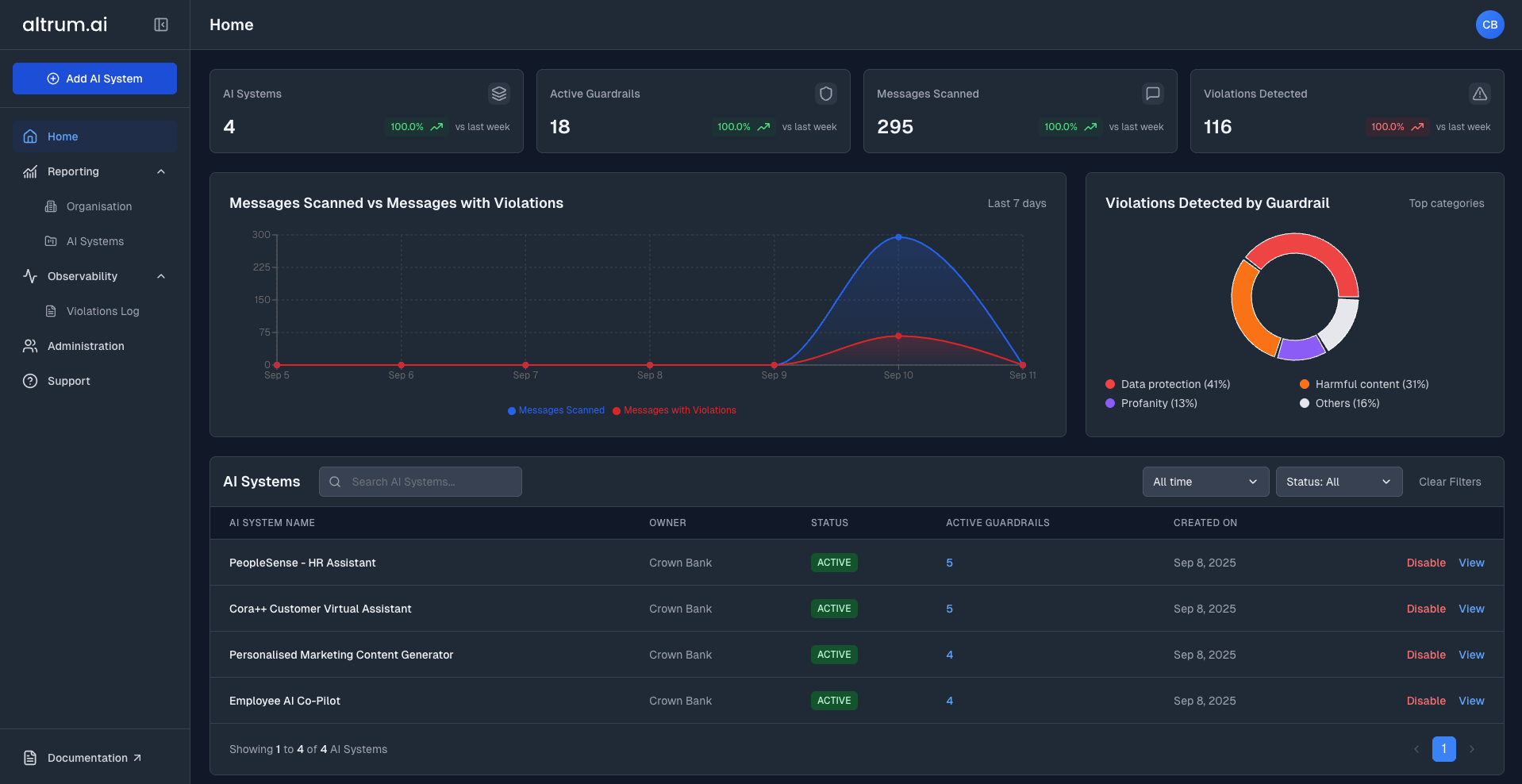
Once logged in, you'll be directed to the **Home Page**, the control centre of your AltrumAI experience.
### The Home Page Includes:
* **Navigation Panel** – Quick access to Home, Reporting, Observability, Administration, Support, and Documentation.
* **Summary Statistics** – Key metrics, charts, and graphs on AI systems, requests, and guardrail violations.
* **AI Systems List** – A searchable and filterable table view of all AI systems with actionable controls.
 ***
## Creating and Configuring a New AI System
### Step 1: Launch the AI System Wizard
1. Click the **Add AI System** button in the left-hand navigation panel
2. You will be redirected to the **AI System Details** Step.
***
## Creating and Configuring a New AI System
### Step 1: Launch the AI System Wizard
1. Click the **Add AI System** button in the left-hand navigation panel
2. You will be redirected to the **AI System Details** Step.
 ***
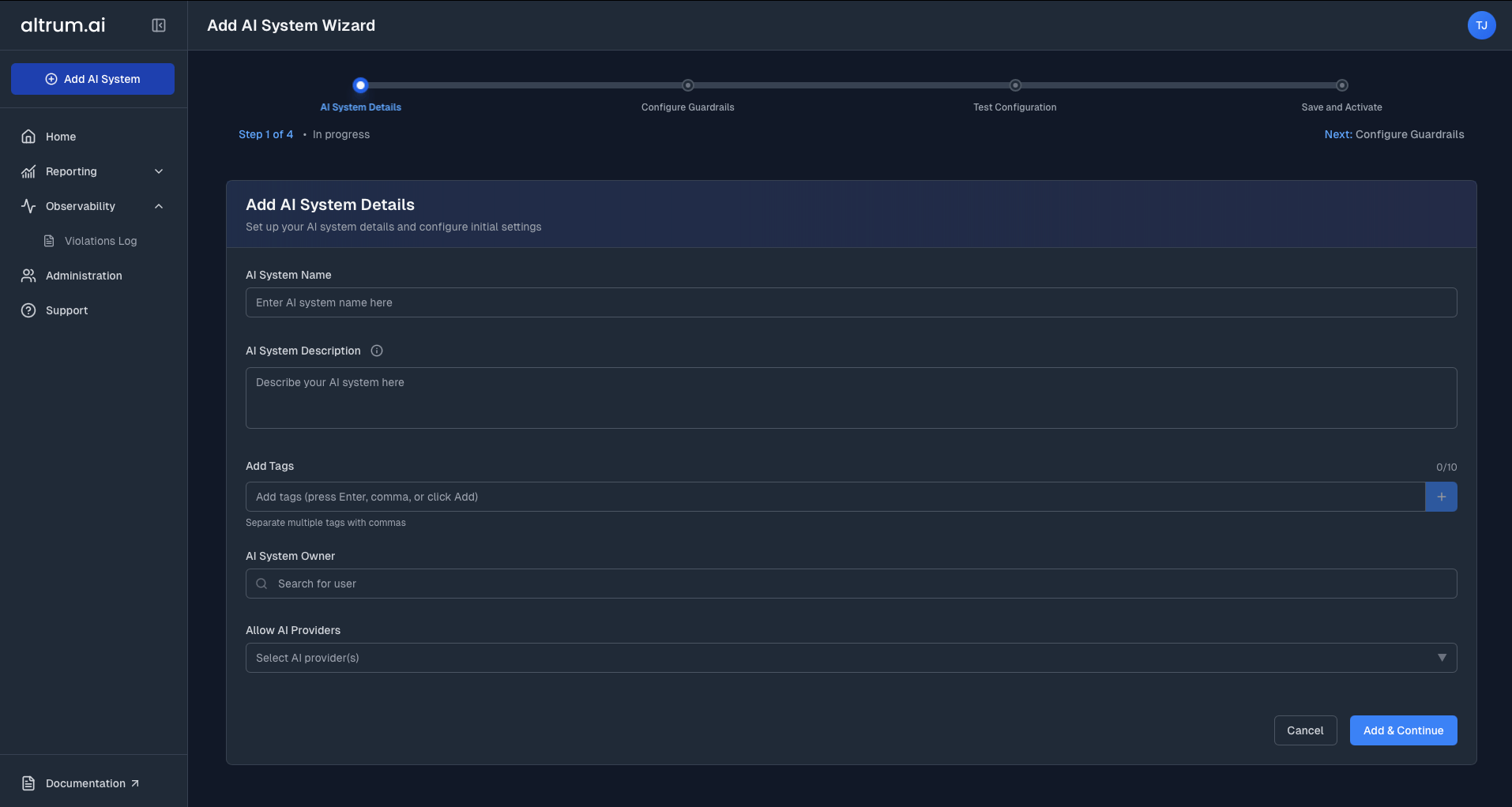
### Step 2: Enter AI System Details
1. Fill in the required fields:
* **AI System Name** (required)
* **AI System Description** (required)
* **AI System Owner** (required)
* **LLM Service Providers** (select one or more)
> **Important:**\
> Your AI System will only function with the AI Providers you select during setup. Ensure you choose all providers you plan to use with this system.
2. Optionally, add:
* **AI System Tags**
3. Click **Add & Continue**.
***
### Step 2: Enter AI System Details
1. Fill in the required fields:
* **AI System Name** (required)
* **AI System Description** (required)
* **AI System Owner** (required)
* **LLM Service Providers** (select one or more)
> **Important:**\
> Your AI System will only function with the AI Providers you select during setup. Ensure you choose all providers you plan to use with this system.
2. Optionally, add:
* **AI System Tags**
3. Click **Add & Continue**.
 ***
### Step 3: Configure the AI System
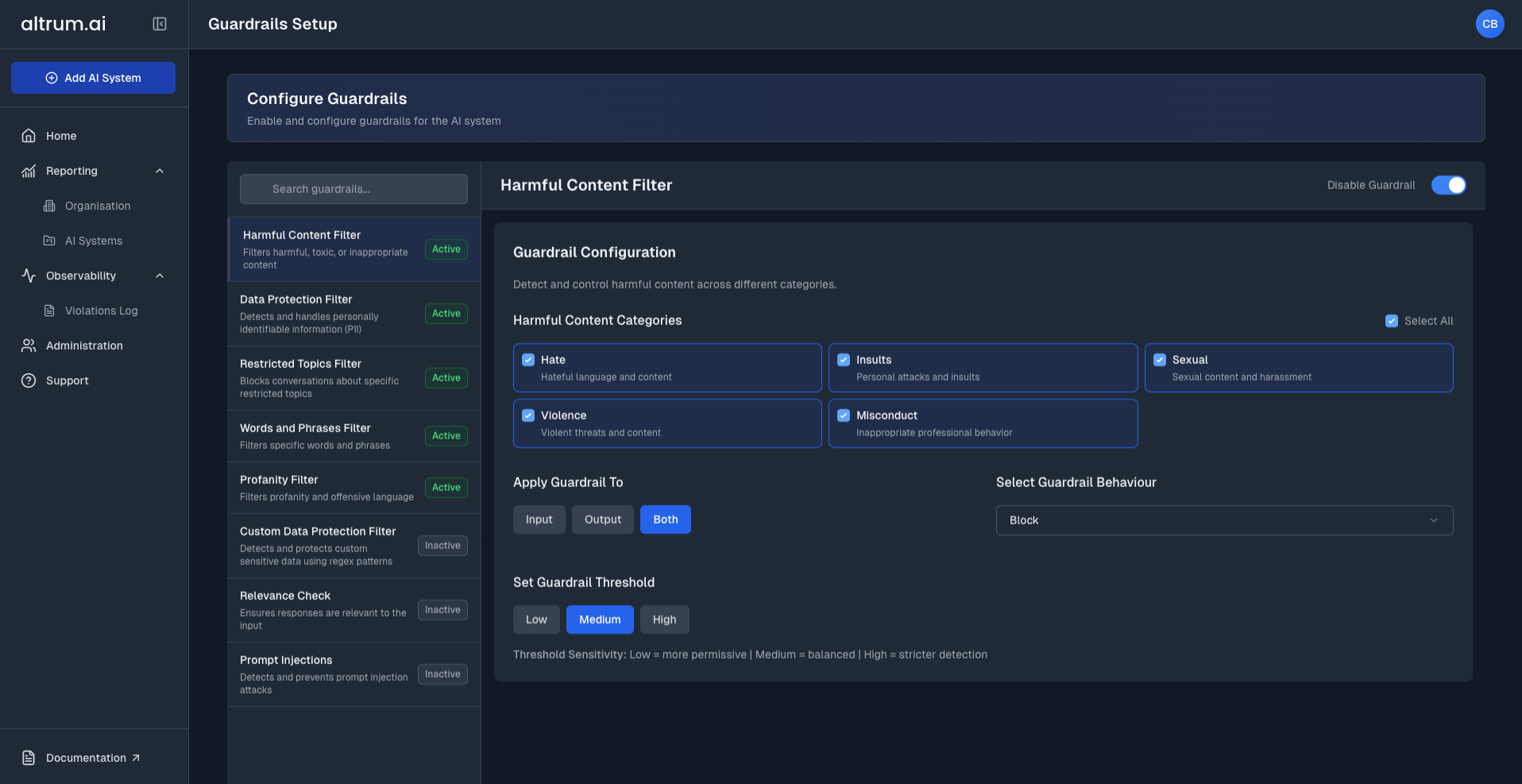
Upon creation, you'll be redirected to the **Configure Guardrails** environment.:
1. From the list of available guardrails, click to select a guardrail.
2. Use the panel on the right to:
* Enable or disable the guardrail
* Set enforcement mode (e.g., **Monitor** or **Block**)
* Adjust thresholds or select relevant criteria (topics, entities, words & phrases)
***
### Step 3: Configure the AI System
Upon creation, you'll be redirected to the **Configure Guardrails** environment.:
1. From the list of available guardrails, click to select a guardrail.
2. Use the panel on the right to:
* Enable or disable the guardrail
* Set enforcement mode (e.g., **Monitor** or **Block**)
* Adjust thresholds or select relevant criteria (topics, entities, words & phrases)
 > **Note:**\
> For more detail on individual guardrails, refer to the [Guardrail Configuration Guide](/guardrails).
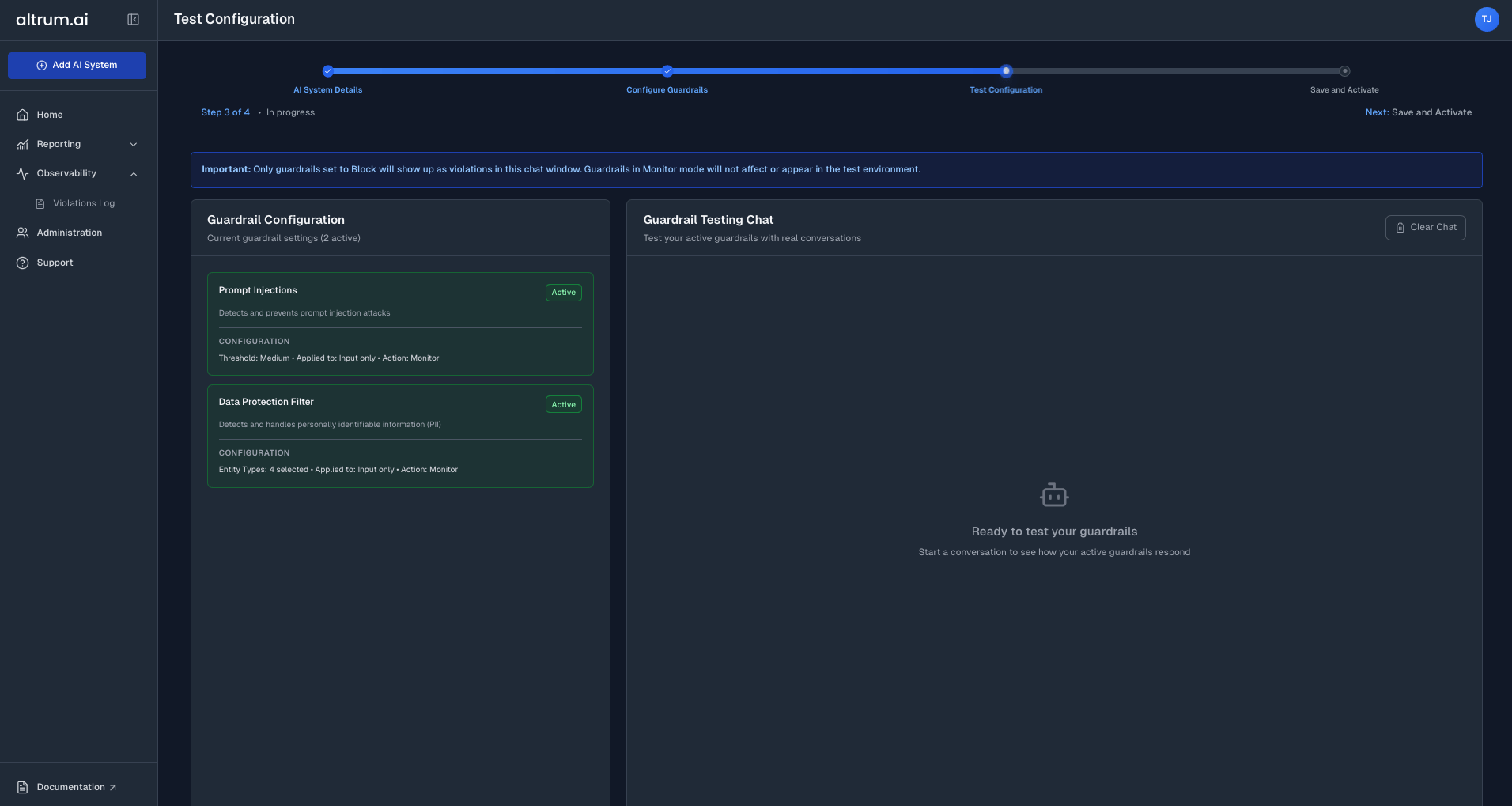
#### 3.2 Test Guardrails
1. Use the built-in sandbox environment to:
* Interact with a test chatbot
* Validate how guardrails behave in real time
* Review flagged inputs and outputs
2. Once satisfied, click **Continue to Summary** to proceed.
> **Note:**\
> For more detail on individual guardrails, refer to the [Guardrail Configuration Guide](/guardrails).
#### 3.2 Test Guardrails
1. Use the built-in sandbox environment to:
* Interact with a test chatbot
* Validate how guardrails behave in real time
* Review flagged inputs and outputs
2. Once satisfied, click **Continue to Summary** to proceed.
 ***
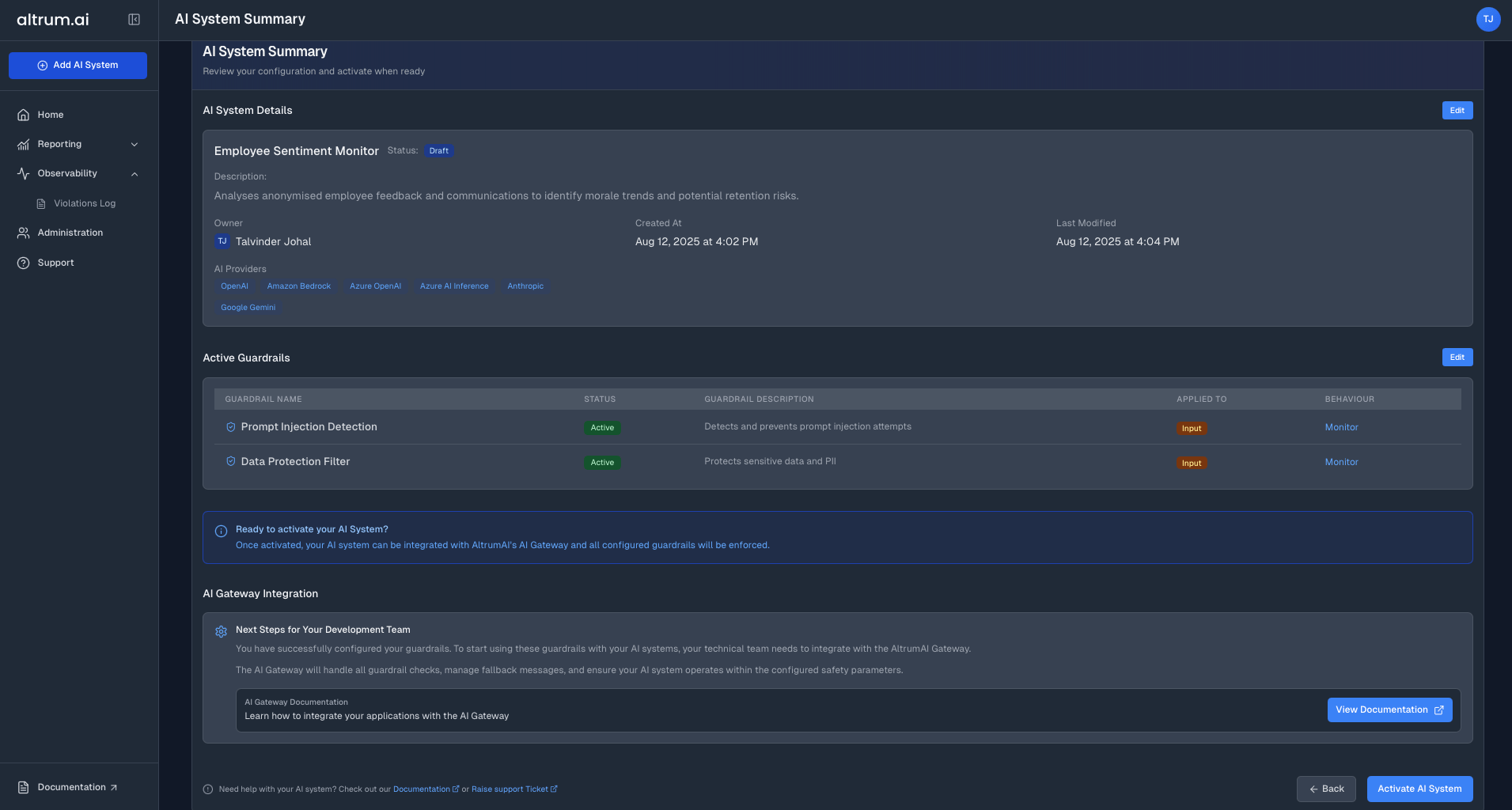
### Step 4: Review and Activate AI System
1. Review your project’s setup on the **Summary Page**.
2. Use the edit icons to make changes to any step if needed.
3. Once confirmed, click **Activate AI System**.
4. A success message will appear
5. Click **View AI System** to open the **AI System Dashboard**.
***
### Step 4: Review and Activate AI System
1. Review your project’s setup on the **Summary Page**.
2. Use the edit icons to make changes to any step if needed.
3. Once confirmed, click **Activate AI System**.
4. A success message will appear
5. Click **View AI System** to open the **AI System Dashboard**.
 ***
## AI System Dashboard
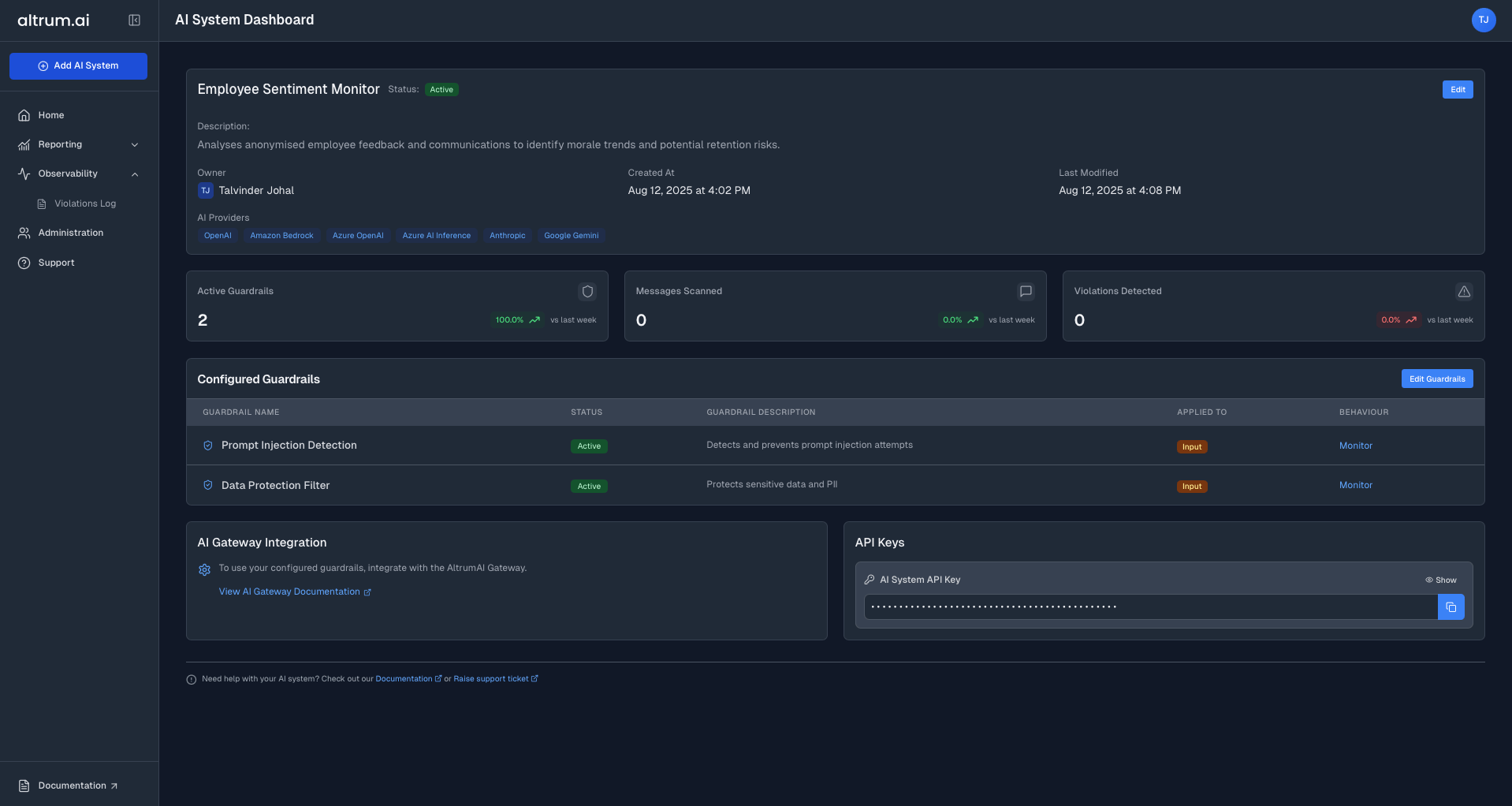
Once an AI system is published, the **AI System Dashboard** becomes the central view for all configuration, activity, and guardrail enforcement related to that AI system.
Key sections include:
* **AI System Details**
* **Guardrail Summary**
* **API Key Access**
* **Usage and Violation Metrics**
***
## AI System Dashboard
Once an AI system is published, the **AI System Dashboard** becomes the central view for all configuration, activity, and guardrail enforcement related to that AI system.
Key sections include:
* **AI System Details**
* **Guardrail Summary**
* **API Key Access**
* **Usage and Violation Metrics**
 ***
## Editing AI System Details
To Edit an Existing AI System:
1. Navigate to the **Home Page**.
2. In the **AI Systems Table**, find your AI system and click the **View** in the last column.
3. On the **AI System Dashboard**, Click **Edit** to return to **Step 1** of the setup process
4. Modify the necessary fields and click **Save Changes**.
***
## Next Steps
Enforce ethical AI usage and compliance guardrails.
Access real-time reports and dashboards.
This documentation is built and hosted on [Mintlify](https://mintlify.com), a developer documentation platform.
***
## Editing AI System Details
To Edit an Existing AI System:
1. Navigate to the **Home Page**.
2. In the **AI Systems Table**, find your AI system and click the **View** in the last column.
3. On the **AI System Dashboard**, Click **Edit** to return to **Step 1** of the setup process
4. Modify the necessary fields and click **Save Changes**.
***
## Next Steps
Enforce ethical AI usage and compliance guardrails.
Access real-time reports and dashboards.
This documentation is built and hosted on [Mintlify](https://mintlify.com), a developer documentation platform.